MENU
|
Getting Started:
FAQ | Forum
Customizing K2PDFOPT:
Adjusting the output:
Processing Options:
|
|
| |
SETTING THE SCREEN SIZE FOR YOUR DEVICE
To set the screen size for your device, use the "d" option from the interactive menu
(display resolution) or the -w (width) and -h (height) command-line options. These
set the device screen size in pixels. The defaults for the kindle are 560 x 735.
Even though the kindle screen is technically 600 x 800, the useable space for PDF
files is 560 x 735. For the larger Kindle DX, for example,
the full screen resolution is
824 x 1200, so -w 784 and -h 1135 would probably work okay (I don't
have a Kindle DX, so I haven't tested it).
| |
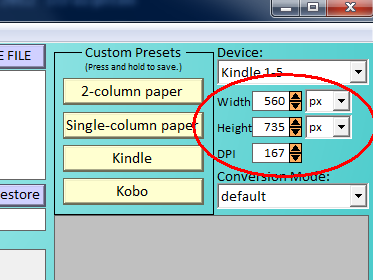
Windows GUI adjustment for device screen size |
You typically don't have to get this exactly right. If you use values that are too small,
the resolution will be poor on your device (text may appear jagged).
If you use values that are too large, the
file sizes will be larger than they need to be. I worked to get the kindle defaults so that
the bitmaps from the PDF file map exactly 1-to-1 onto each kindle pixel, which is ideal,
but it took some doing (see the version history
comments on v1.16). I had to do several screen captures
(ALT-SHIFT-G)
using special custom PDF images and iterate a few
times.
If anybody figures out the ideal settings for a device not included in k2pdfopt's
device list, send me an e-mail
or post screenshots at this thread on mobileread.com so that I can incorporate them
into future releases of k2pdfopt.
I don't have access to lots of reading devices, but typically you can find the display
resolution for your reader using google (e.g. "kindle dx display resolution").
The other factor that affects the size and quality of the text on the display the DPI.
|
|
|
|